

Import from FileZilla, WinSCP, PuTTY, OpenSSH or MobaXterm
Bring your existing sessions over in one click: automatic detection, preview, then an encrypted import into the vault of your choice.
Naucturne reads the configuration files of the clients you already use. Nothing is saved before you confirm: the preview lists every session, its protocol and the state of its password.
Start an import
Open Integrations & Import (icon in the top right) and pick a source. The same import is available from the site manager.
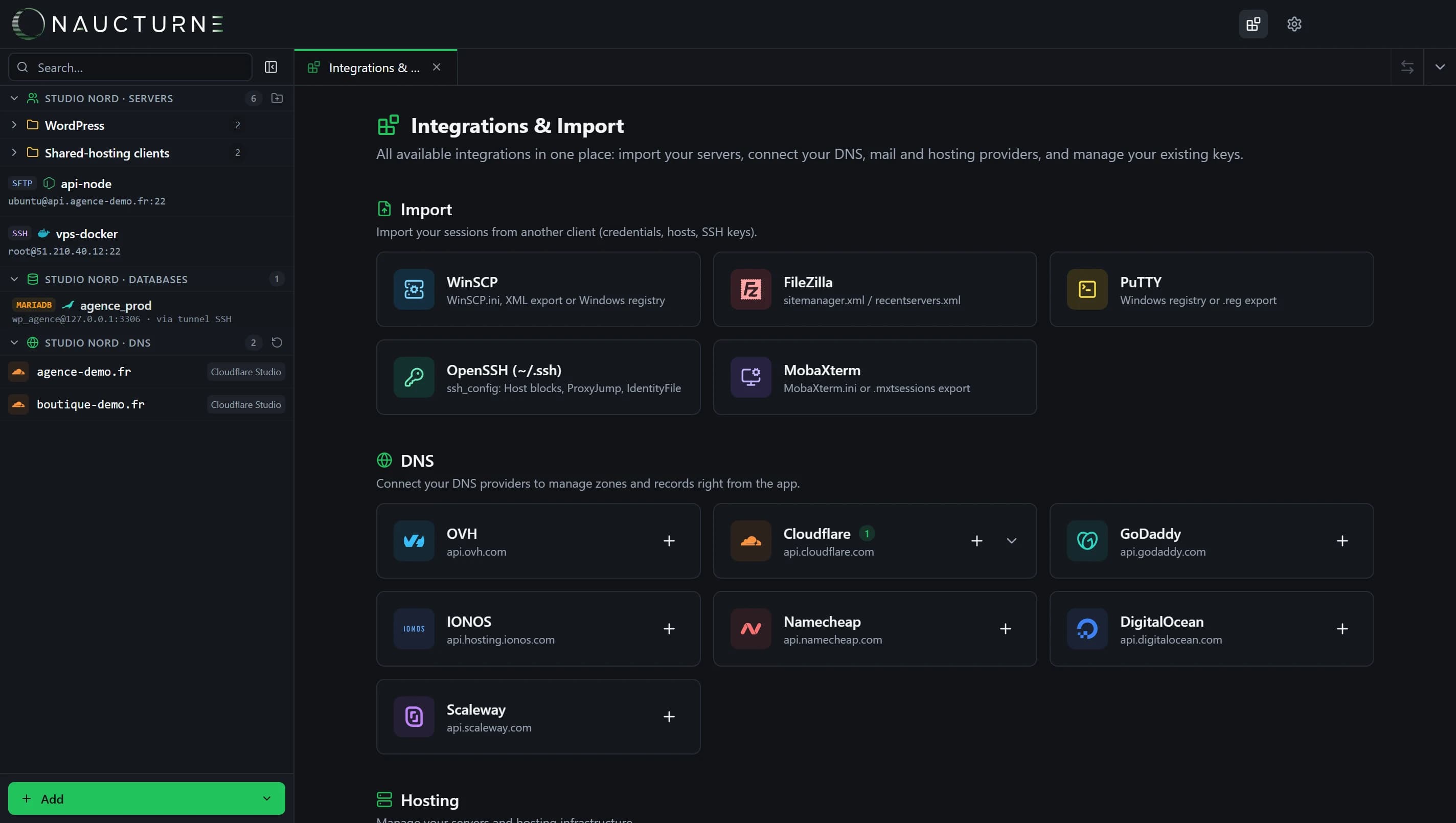
Automatic detection
Naucturne looks for the client's configuration in its usual locations. Otherwise, Choose a file accepts an export.
Check the preview
Untick the sessions you don't need. The Password and Key columns show what was decoded and what you will need to re-enter.
Pick the vault and import
Choose the target vault (personal or team): credentials are encrypted before they are saved.
FileZilla
Sites are read from sitemanager.xml and recentservers.xml, folders included. Base64-encoded passwords are decoded automatically.
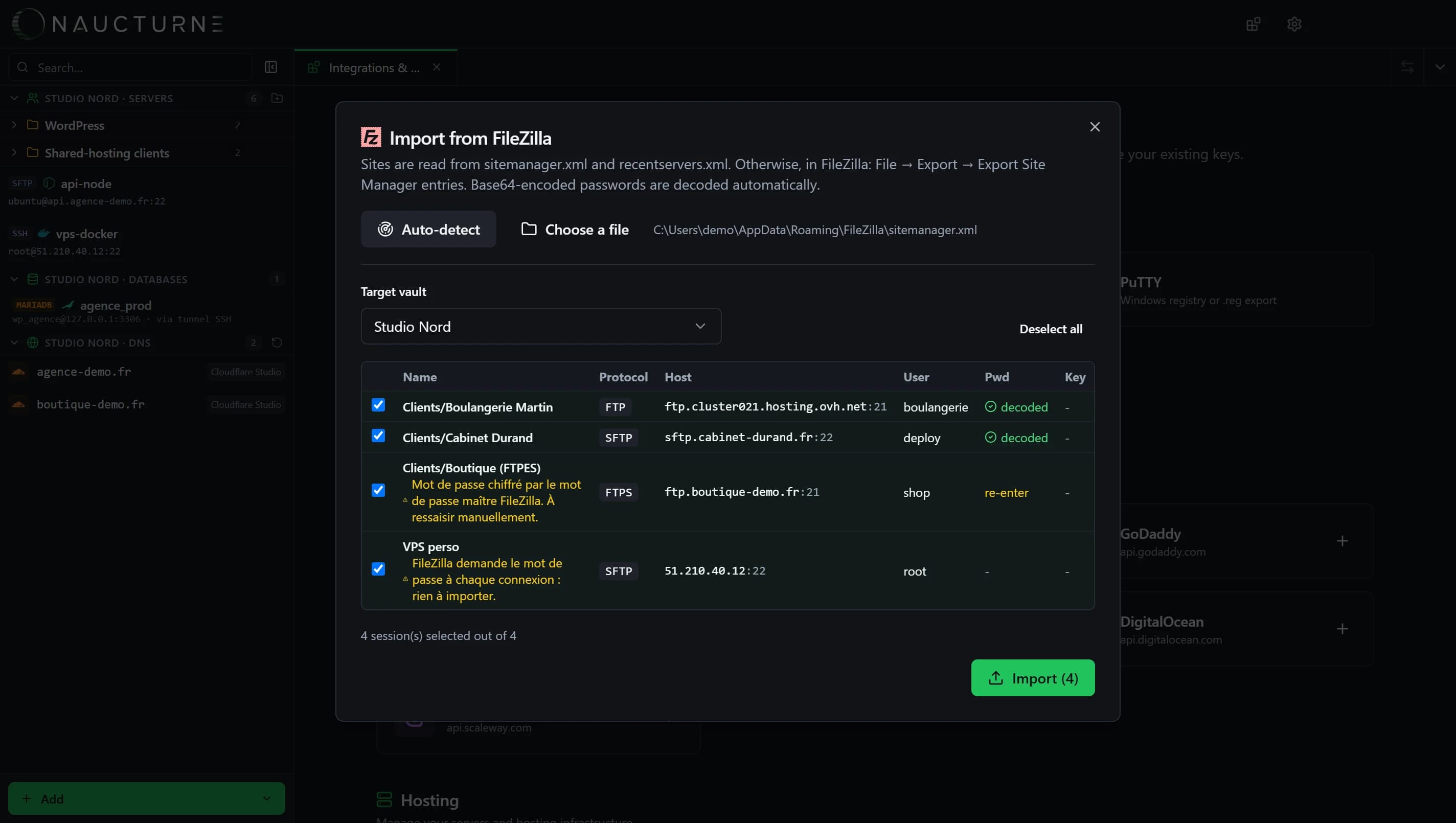
Dedicated guide: import your FileZilla sites.
WinSCP
Sessions are read from WinSCP.ini and from the Windows registry. Passwords are decoded when WinSCP has no master password.
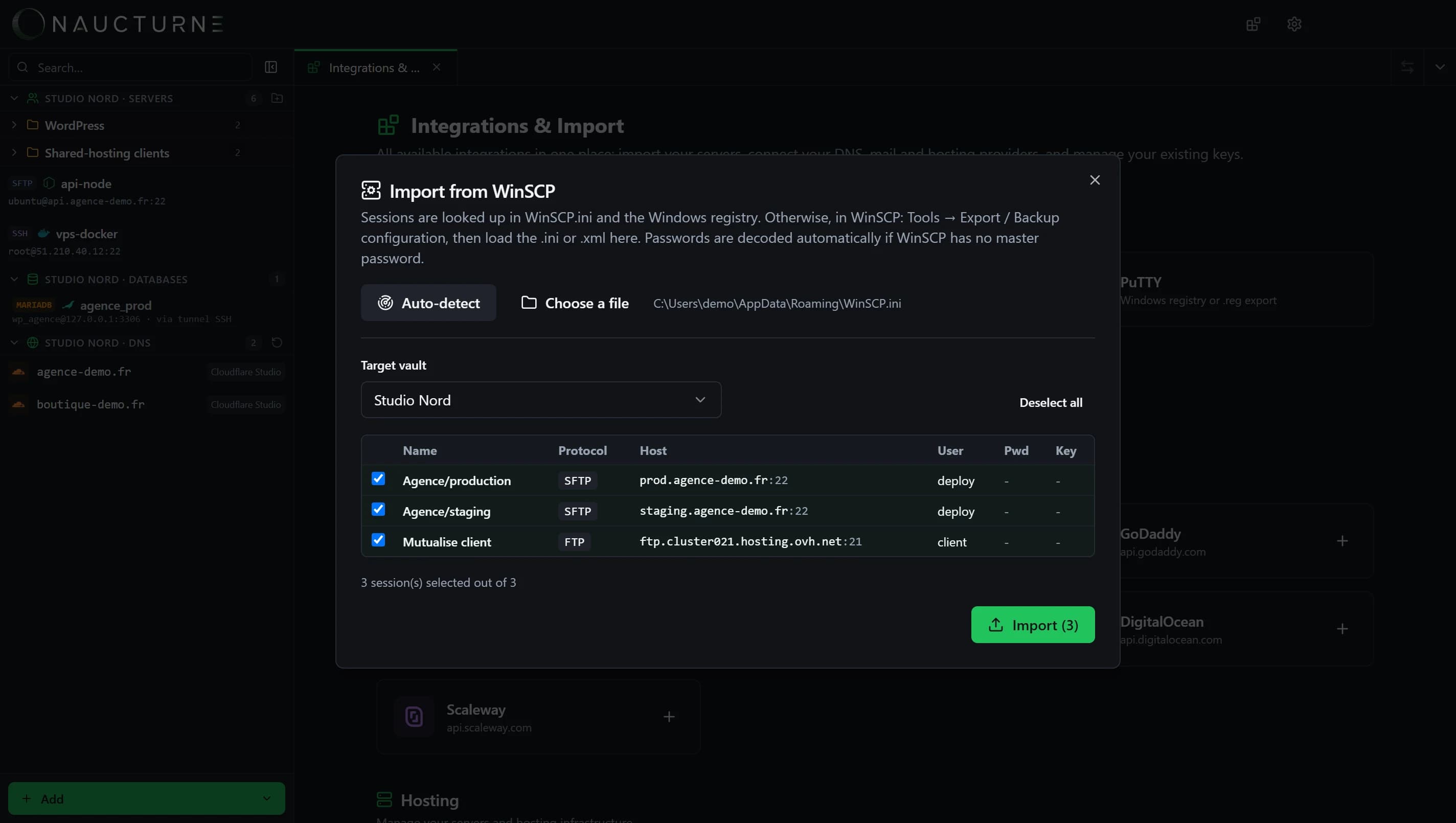
Dedicated guide: import your WinSCP sessions.
PuTTY, OpenSSH and MobaXterm
- PuTTY: Windows registry and
~/.putty/sessions. Referenced.ppkkeys are imported; PuTTY does not store passwords. - OpenSSH:
Hostblocks from~/.ssh/config(includingIncludedirectives).ProxyJumpbecomes a relay server andIdentityFilekeys are imported. - MobaXterm:
MobaXterm.inior a.mxtsessionsexport. SSH gateways become relay servers.
On your phone
Imports run from the desktop app. Imported sites then show up on the iPhone or Android device signed in to the same account.
Didn't find your answer?
Our team answers every question, bug report and suggestion.