

Install Naucturne and create your vault
Download the app, create your account and choose the master password that encrypts all your credentials.
Naucturne is a desktop app for Windows and macOS (Linux coming soon), with an iPhone and Android version in beta. Everything sensitive (passwords, private keys, database profiles) is encrypted on your device before it is synced.
Download and install
Download the installer
Go to the download page: the site detects your system and highlights the right installer.
Run the installer
Windows:
.exeinstaller. macOS:.dmgimage. The Linux build (AppImage) will be offered on the same page as soon as it ships.Open Naucturne
Later updates are downloaded and installed from inside the app: a button appears in the top bar as soon as a new version is ready.
Create your account
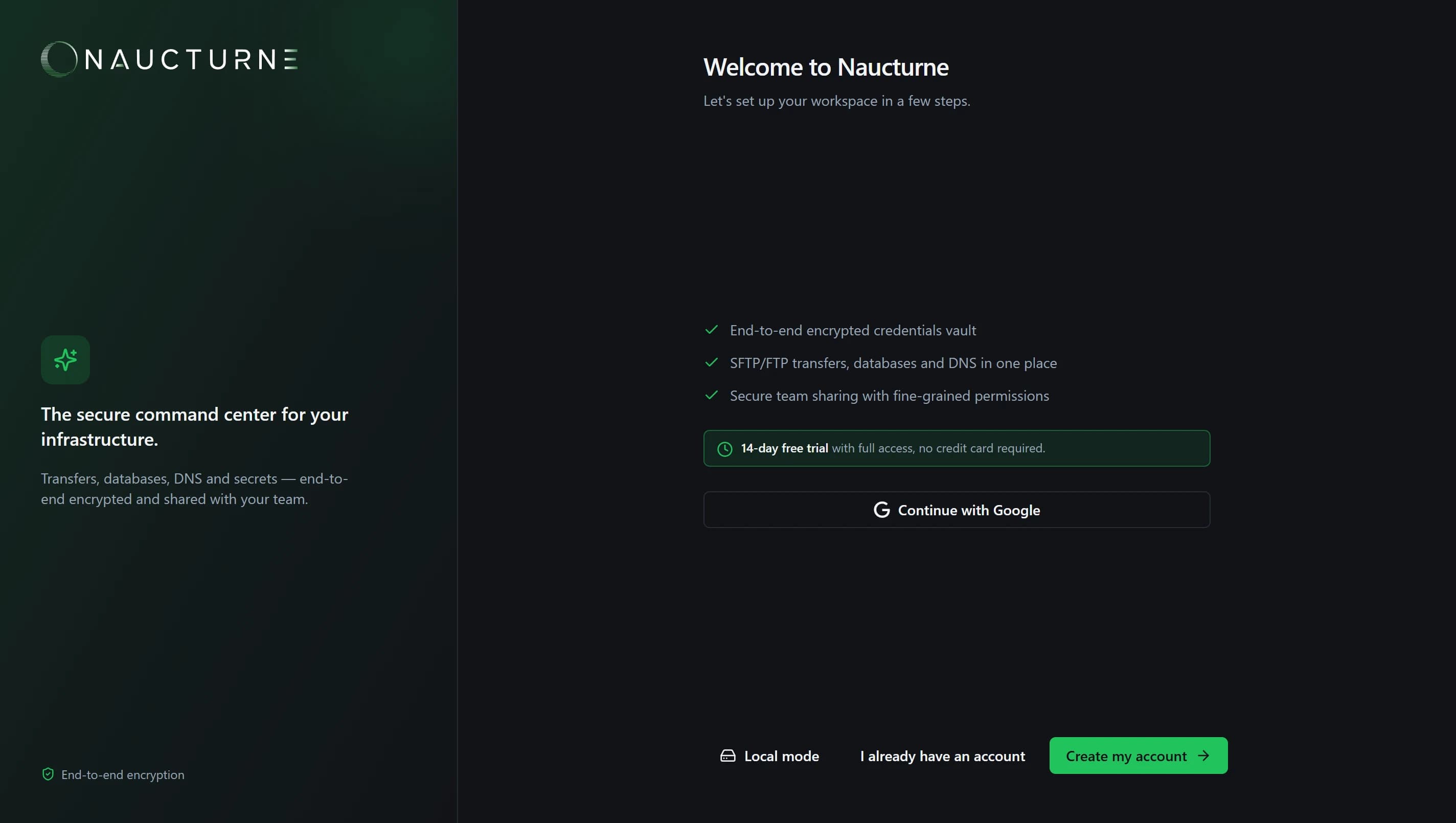
On first launch, the welcome screen lets you create an account (email or Google) or sign in to an existing one. Every new account starts with a full 14-day trial, no credit card required.
Choose your master password
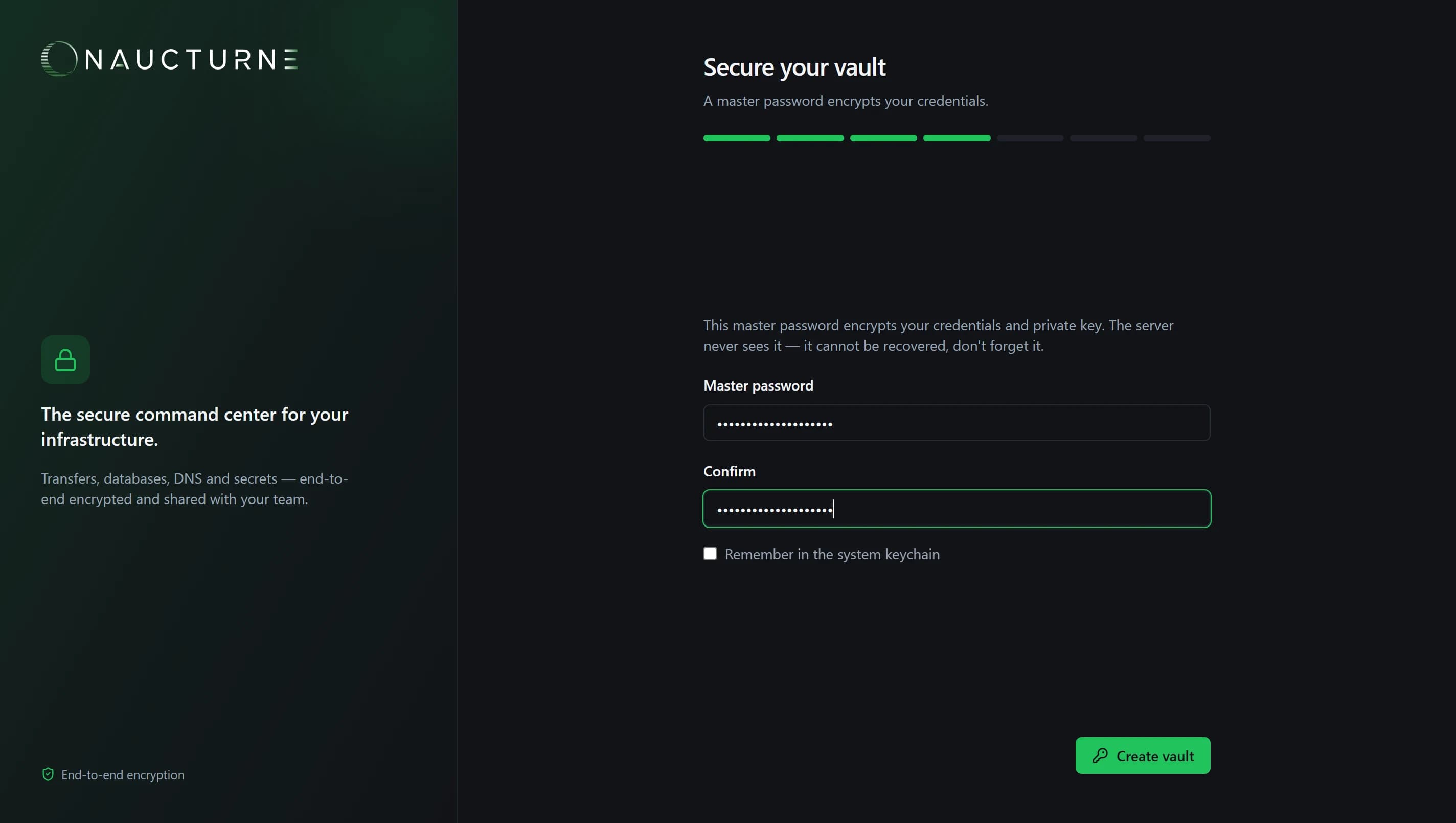
The master password derives the AES-256-GCM key that encrypts your vault (PBKDF2-SHA512, 600,000 iterations). It never leaves your machine: the server only ever stores encrypted data.
It cannot be recovered
Nobody, not even the Naucturne team, can recover your master password. Tick "Remember in the system keychain" so you don't have to type it every time (Credential Manager, macOS Keychain or libsecret).
What's next?
- Add your servers manually, or
- import them from FileZilla, WinSCP, PuTTY, OpenSSH or MobaXterm in seconds.
Didn't find your answer?
Our team answers every question, bug report and suggestion.