

Your WinSCP sessions, imported in one click
Naucturne reads WinSCP.ini and the Windows registry, decodes passwords when possible and imports private keys. You keep your sessions and gain databases, DNS and team sharing.
14-day full trial, no credit card. Free plan forever after.
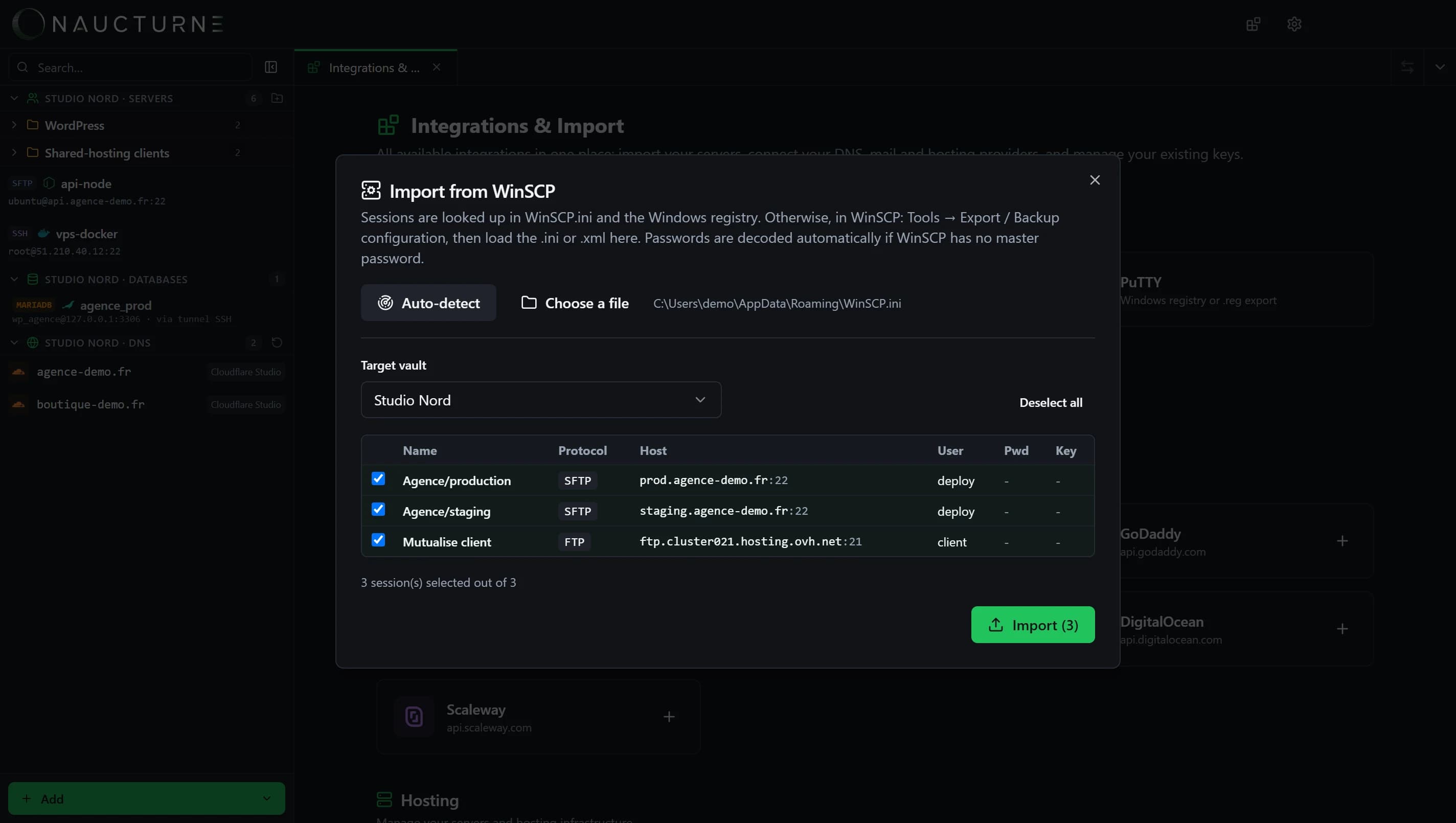
Import in three steps
Open the WinSCP import
In Naucturne: Integrations & Import → WinSCP (or from the site manager).
Click Automatic detection
Naucturne reads WinSCP.ini and the Windows registry. Otherwise, pick an .ini or .xml export.
Confirm the preview
Check the sessions, choose the vault (personal or team) and import.
What gets imported
| Host, port, user | Kept as is |
|---|---|
| Protocols | SFTP and SCP (imported as SFTP), FTP and FTPS |
| Passwords | Decoded when WinSCP has no master password |
| Private keys | .ppk or OpenSSH files imported into the vault |
| Session folders | Kept in the site name (e.g. Agency/production) |
| Remote directory | Becomes the site's initial path |
WinSCP master password
With a WinSCP master password, saved passwords are encrypted and cannot be read: the preview flags them as 're-enter'. A key protected by a passphrase will ask for it when you connect.
Export manually from WinSCP
Handy when WinSCP runs on another computer, as a portable build, or when you want to hand over your sessions.
- 1In WinSCP, open Tools → Export/Backup Configuration.
- 2Save the proposed .ini file.
- 3In Naucturne, open the WinSCP import, click Choose a file and select that file.
- 4Without an export, Naucturne reads %APPDATA%\WinSCP.ini or the registry key HKCU\Software\Martin Prikryl\WinSCP 2\Sessions directly.
What you gain by leaving WinSCP
macOS and mobile too
WinSCP is Windows-only. Naucturne also runs on macOS (Linux soon), with an iPhone and Android beta.
Built-in SSH terminal
No need to start PuTTY on the side: the terminal opens in a tab with the same session.
Sudo without a custom shell
The Elevate button transfers and edits system files through sudo, with no SCP shell to configure.
Databases and DNS
MySQL, MariaDB, PostgreSQL, SQLite, Redis and your DNS zones in the same app as your files.
Encrypted team sharing
Share sessions with per-member permissions, and see who is editing what in real time.
Cursor and VS Code in one click
Open a session in your AI editor over Remote-SSH, with the key installed automatically.
Frequently asked questions
Are sessions stored in the registry found?
Yes. Automatic detection reads both WinSCP.ini and the Windows registry, and merges the results.
Are SCP sessions supported?
They are imported as SFTP, which SSH servers accept in the vast majority of cases.
Is WinSCP changed?
No. Naucturne reads the configuration without writing to it; WinSCP remains usable alongside.
Is importing included in the Free plan?
Yes, importing from WinSCP, FileZilla, PuTTY, OpenSSH and MobaXterm is available on every plan.
Using another client too? Import from FileZilla
Import your WinSCP sessions today
Install Naucturne, run automatic detection and get your servers back in under a minute.