

Add and organise your servers
The site manager: protocols, authentication, folders, site types and attached databases.
Each server (a "site") is an encrypted entry in your vault or in your team's vault. The sidebar groups them by team, folder and kind: servers, databases and DNS domains.
Create a site
Click Add → New server at the bottom of the sidebar, or the pencil next to an existing site, to open the site manager.
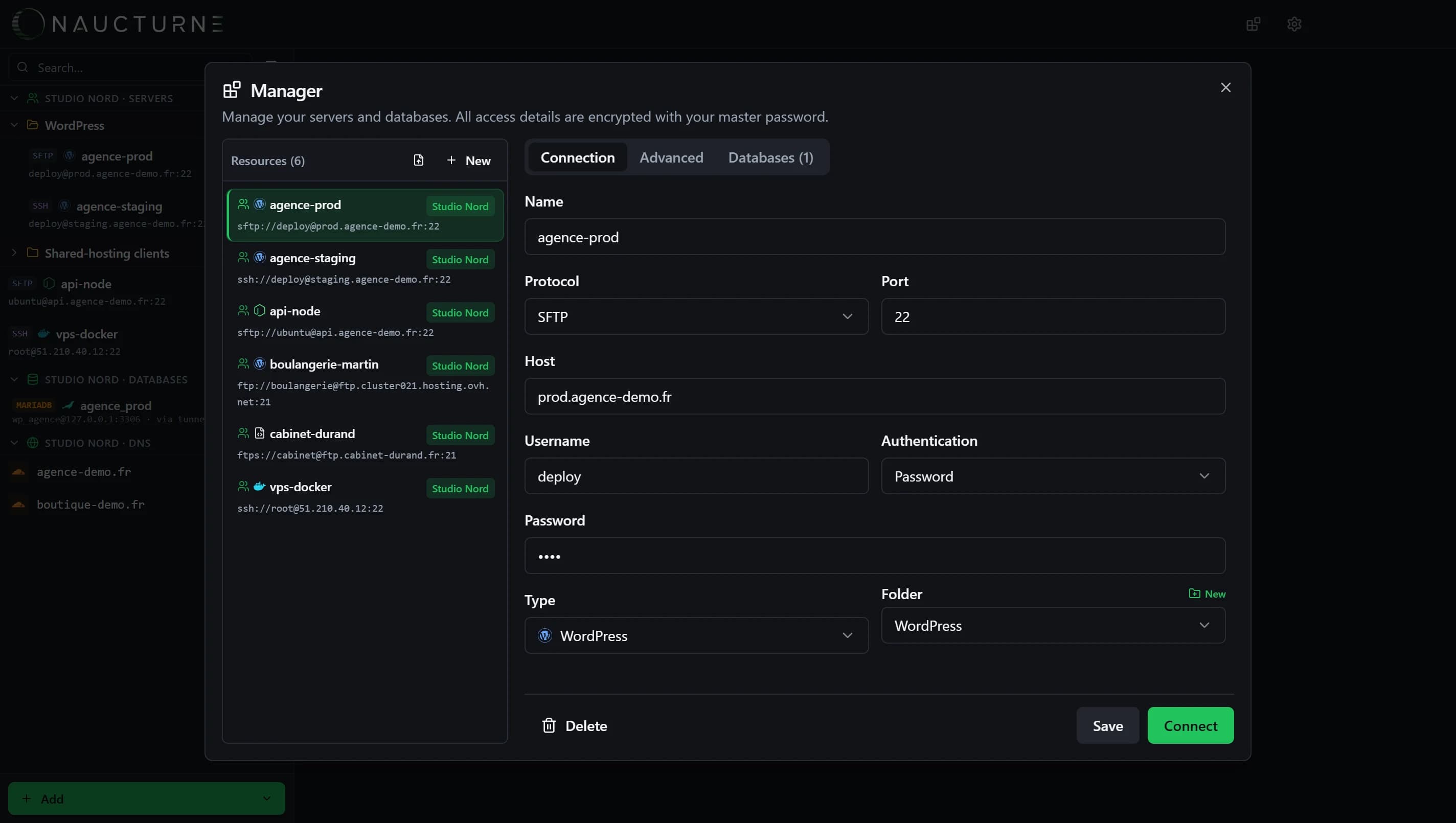
- Protocol: SFTP (files + terminal), SSH, FTP or FTPS. S3 buckets (DigitalOcean Spaces) come in through the hosting integrations.
- Authentication: password, private key (OpenSSH or PuTTY
.ppk, with passphrase) or your system keys (~/.ssh, SSH agent). - Type: WordPress, PrestaShop, Laravel, Symfony, Node.js, Docker… The icon makes each site easy to spot, and WordPress enables smart exclusions for sync.
- Folder and vault: file the site in a folder, in your personal space or in a team.
Advanced options
The Advanced tab holds the initial path, the relay server (ProxyJump) used to reach a machine on a private network through a bastion, and transfer settings specific to this server.
Attach databases
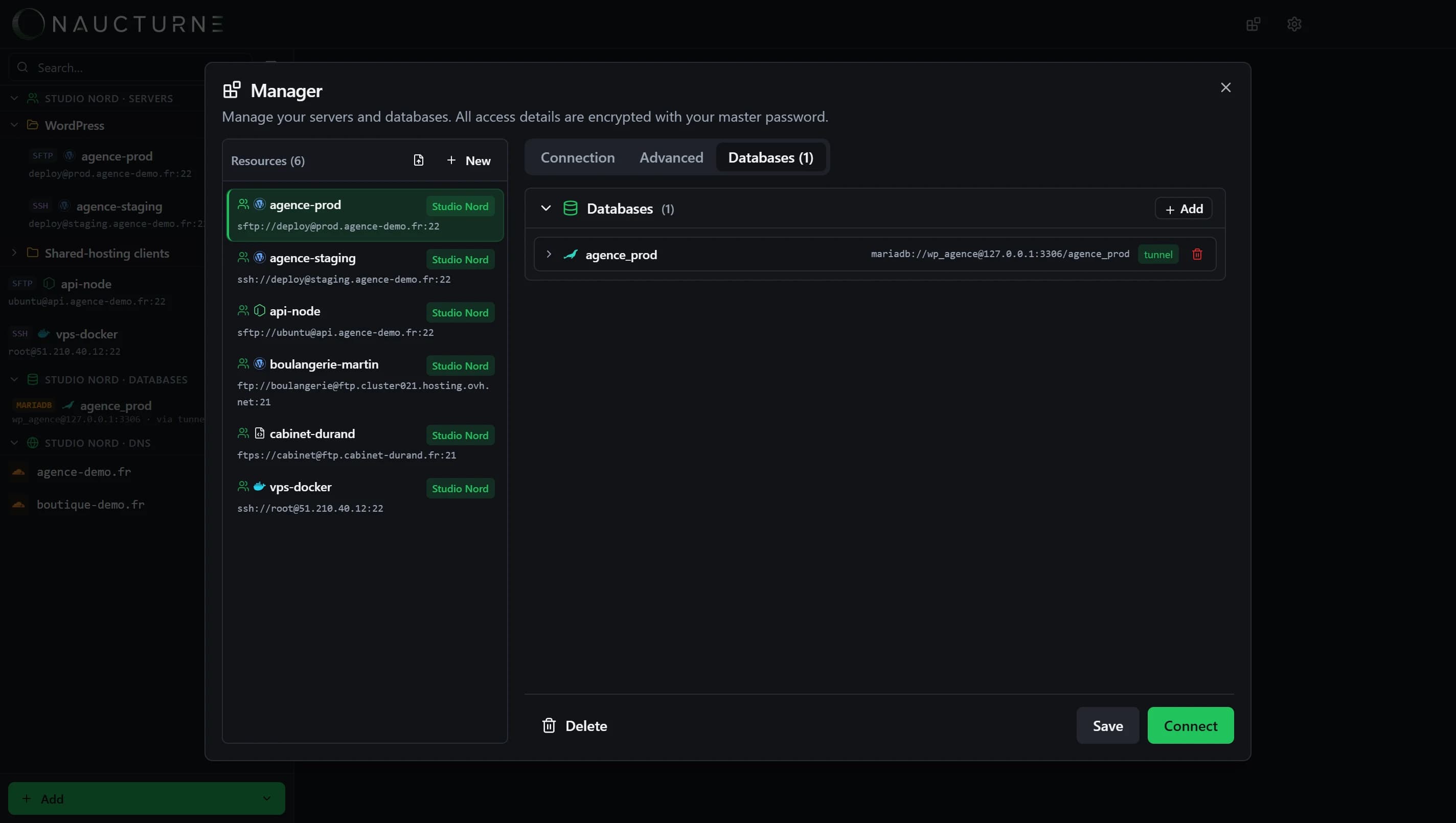
The Databases tab adds one or more MySQL, MariaDB, PostgreSQL, SQLite or Redis profiles to the server. They reuse its SSH connection (tunnel) or the PHP gateway.
SSH fingerprints
On the first connection, Naucturne shows the server's host key fingerprint and asks you to approve it. If it changes later, the connection is refused to block man-in-the-middle attacks.
To go faster, import your existing servers instead of typing them again.
Keine Antwort gefunden?
Unser Team beantwortet jede Frage, jeden Fehlerbericht und jeden Vorschlag.