

Open a server in Cursor or VS Code
One-click Remote-SSH: an SSH key installed for you, remote folder selection and context handed to the AI assistant.
Naucturne detects Cursor and VS Code on your computer. From any SSH server, the editor opens connected to that server over Remote-SSH, with nothing to configure by hand.
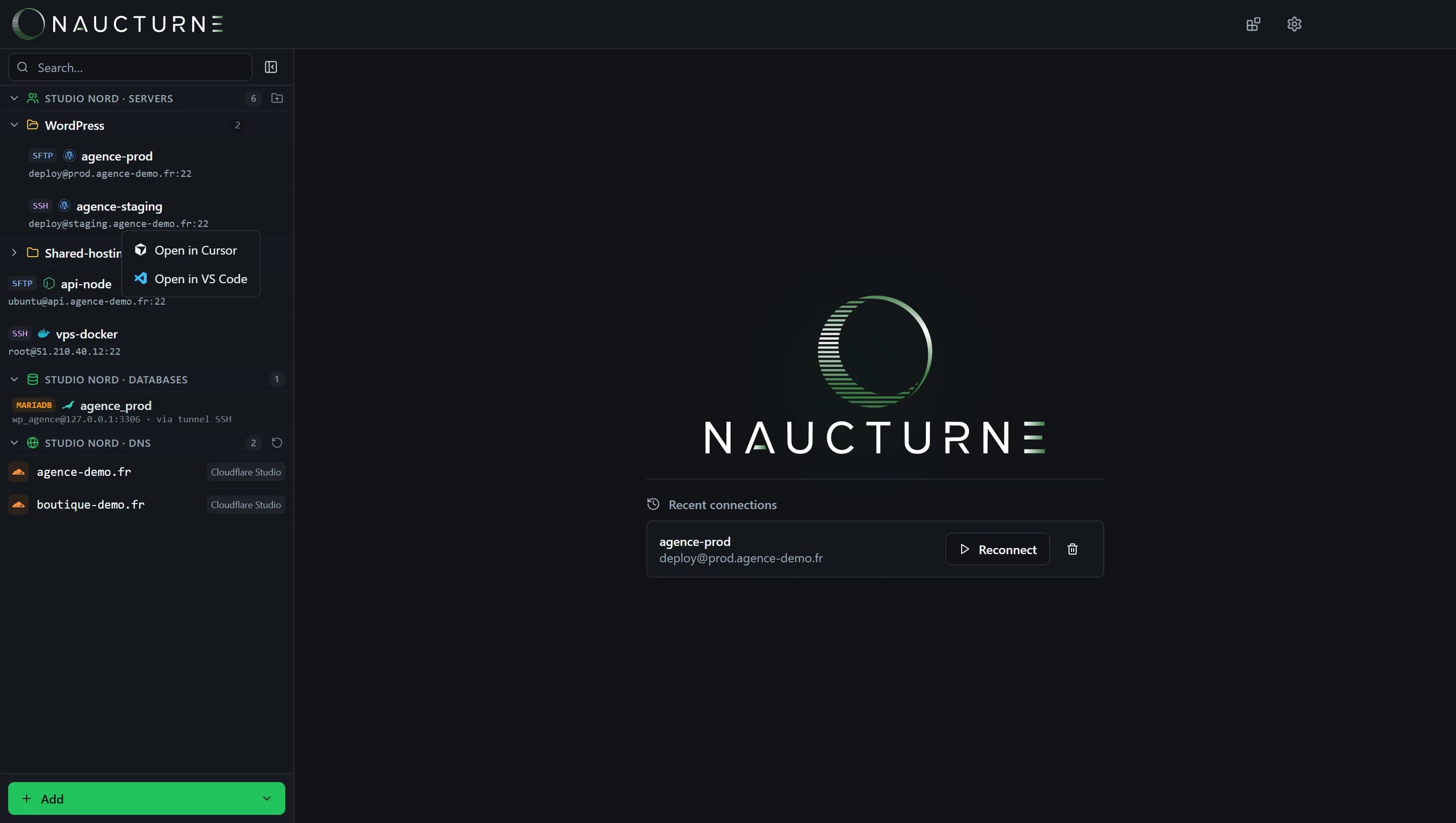
Open the editor
Hover a site in the sidebar, click the editor icon, then choose Open in Cursor or Open in VS Code.
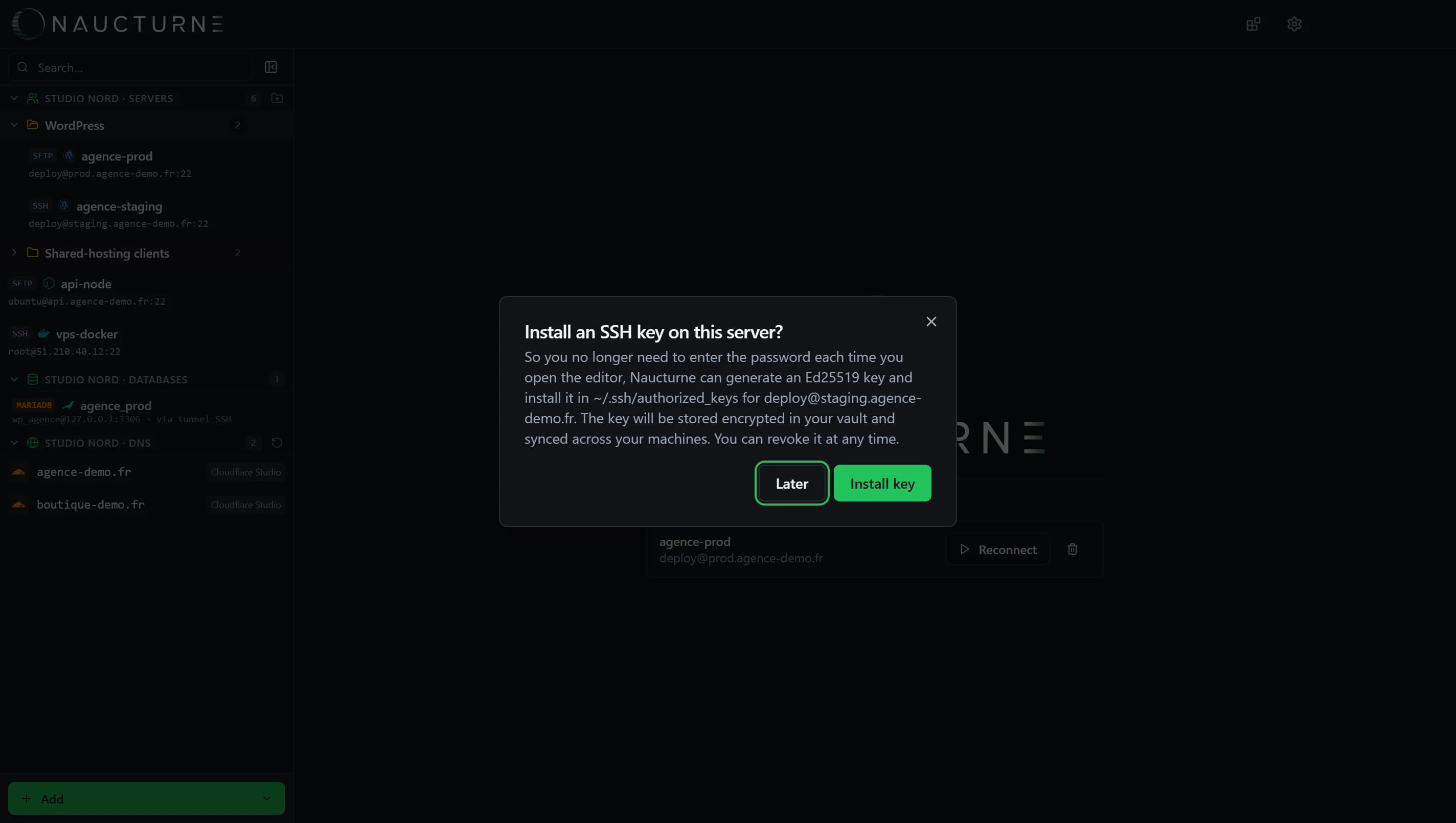
Install an SSH key (once)
When the server uses a password, Naucturne offers to generate an Ed25519 key and add it to ~/.ssh/authorized_keys. The key is stored encrypted in your vault and synced across your computers; you can revoke it at any time.
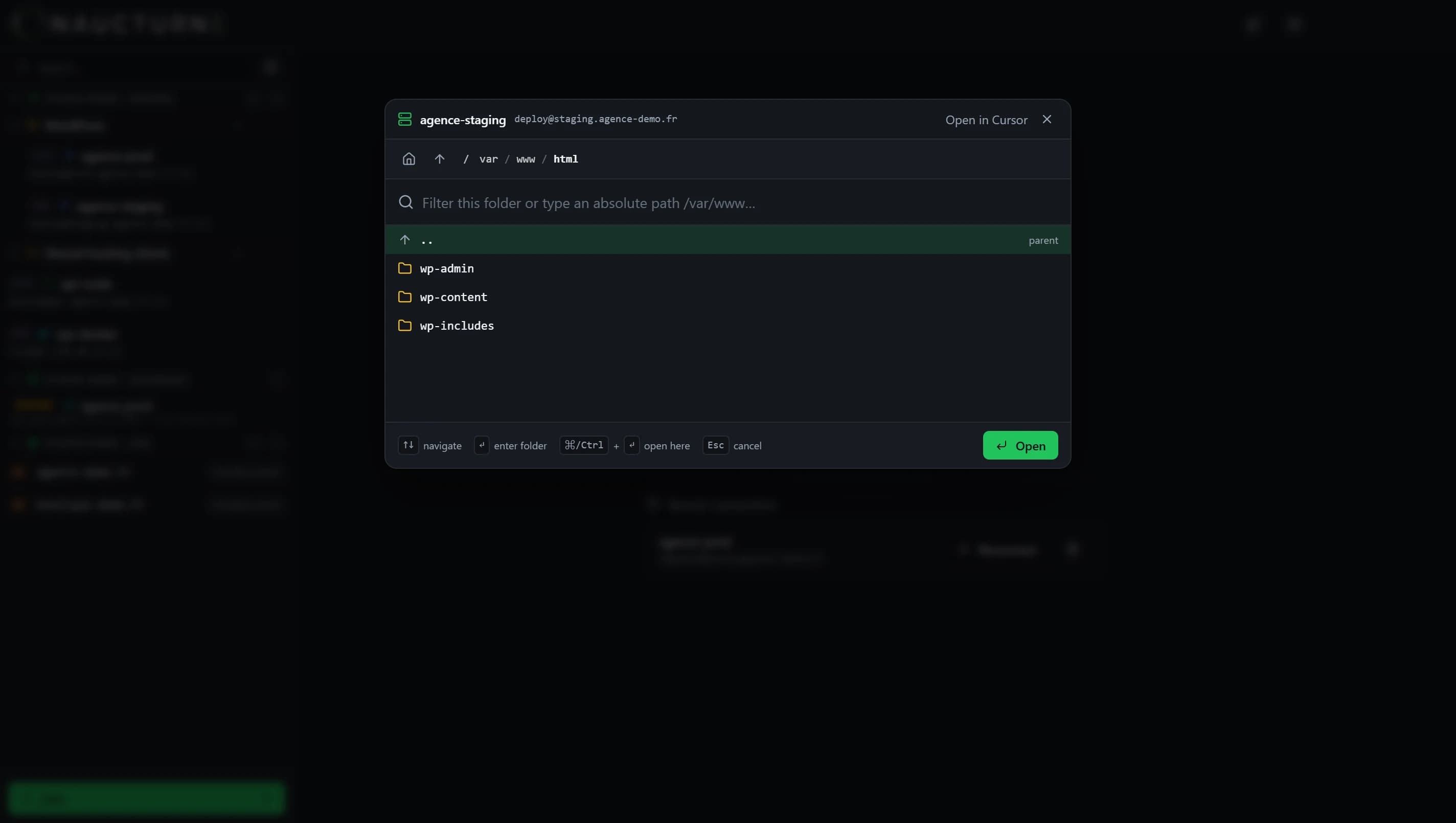
Pick the folder
Browse the remote tree (arrow keys, Enter to go into a folder, Ctrl+Enter to open here): the editor opens directly on the right project.
Context for the AI
Naucturne writes a .cursor/rules file that describes the site: server, folders, database profiles and sync rules. The assistant knows where it is working from the very first message.
No SSH?
On FTP-only shared hosting, Naucturne syncs the site into a local folder that the editor opens, and the PHP gateway gives access to the database. Changes made by the AI are pushed back to the server automatically.
Keine Antwort gefunden?
Unser Team beantwortet jede Frage, jeden Fehlerbericht und jeden Vorschlag.