

Transfer files and use the terminal
The local / remote dual-pane, server-to-server transfers, folder comparison, sudo, archives and the SSH terminal.
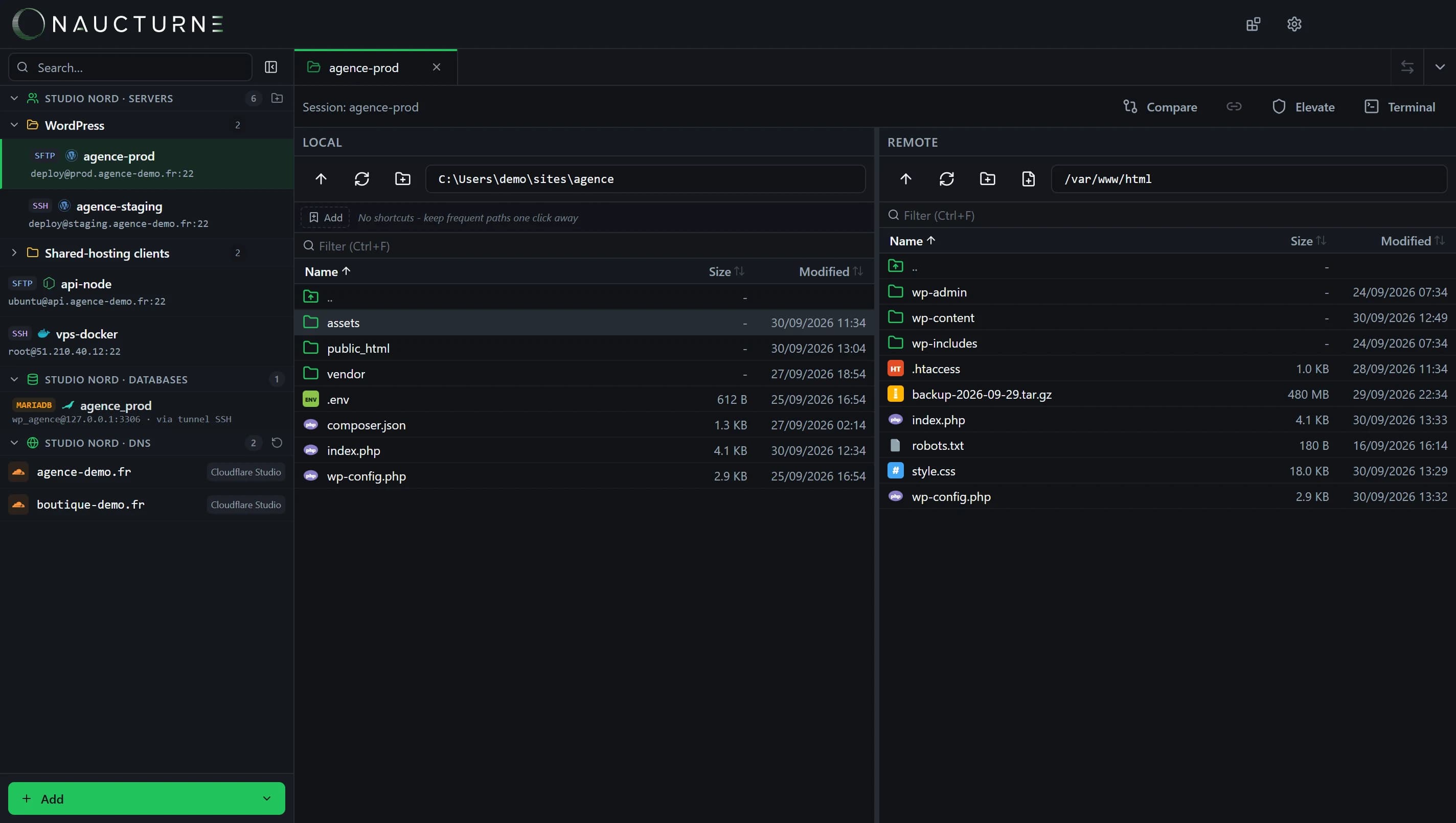
Double-click a site in the sidebar: Naucturne opens a tab with your computer on the left and the server on the right. Each connection gets its own tab, and you can open as many as you need.
Upload and download
- Drag and drop between the two panes, or from your system's file explorer onto the remote pane.
- Double-click: upload / download, or open the file in your editor (configurable in settings).
- Shortcuts:
Ctrl+Dadds the current folder to shortcuts;Ctrl+Ffilters the list;F2renames;Deleteremoves.
The transfer queue shows progress and lets you pause, resume or cancel. An interrupted transfer resumes where it stopped.
Handle conflicts
When a file already exists at the destination, Naucturne asks what to do: replace, skip, keep newer, rename or resume a partially transferred file. The choice can apply to the whole batch.
Server to server
Open two connections, then use the server-to-server transfer button (arrows at the top right of the tabs). Files go straight from one server to the other, without a copy on your disk.
Compare, elevate, archive
- Compare highlights the files that differ between the local and remote folders.
- Elevate runs file operations through
sudo(read, upload, download), so you can edit a system file without reconnecting as root. - Compress / Extract here (right-click, over SSH) creates or unpacks a
ziportar.gzarchive directly on the server.
SSH terminal
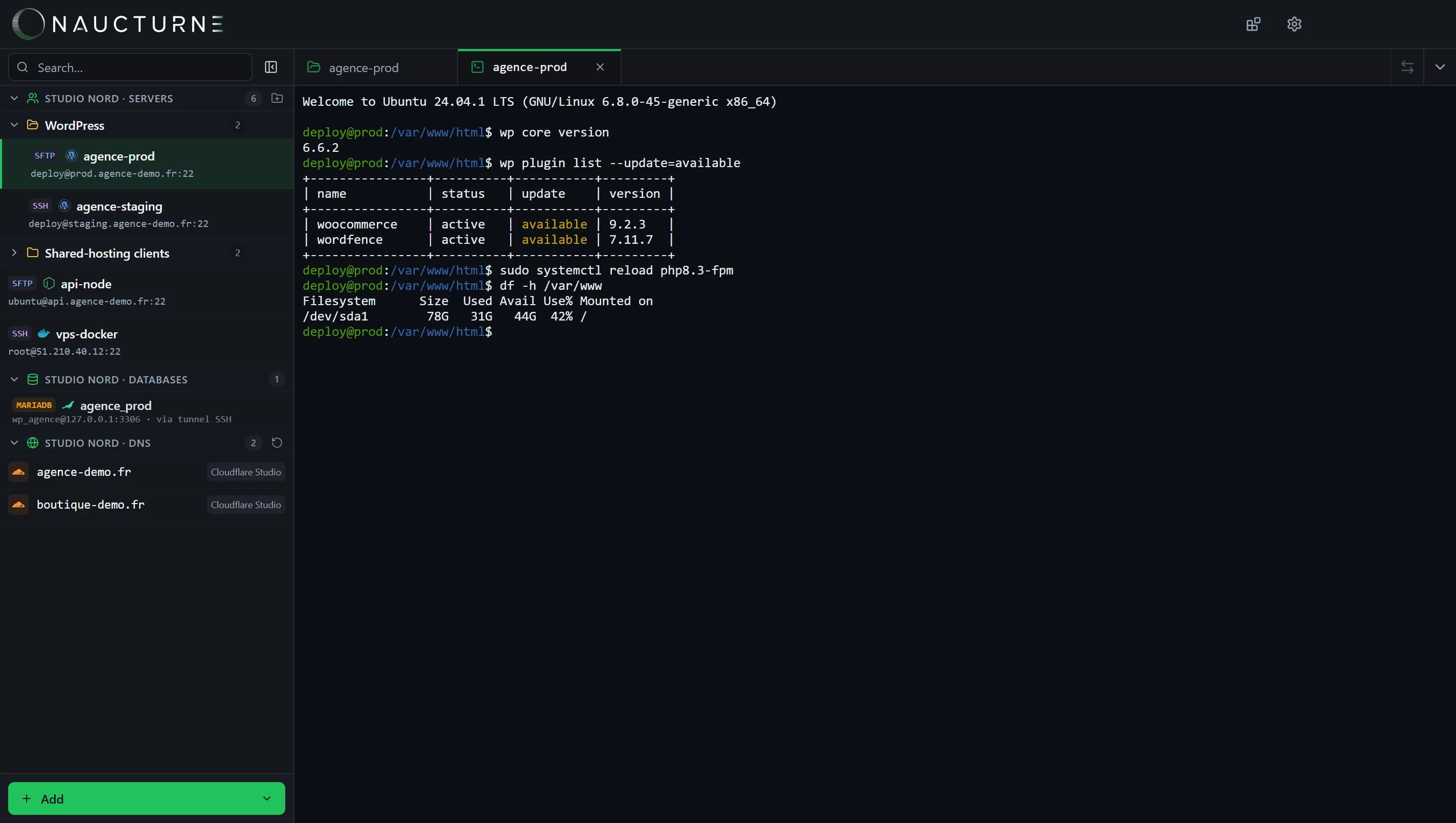
The Terminal button opens a shell on the server in a new tab, with the same authentication. A local terminal is also available.
Working as a team
In a team, Naucturne detects when a file has changed on the server since your copy and blocks the overwrite. See Teams and sharing.
Keine Antwort gefunden?
Unser Team beantwortet jede Frage, jeden Fehlerbericht und jeden Vorschlag.