

Manage DigitalOcean Droplets, Spaces and DNS from One Client
Connect a DigitalOcean token once: Droplets become SSH sites, managed databases and DNS zones appear, and Spaces can be browsed like an S3 file server.
A typical DigitalOcean project spreads across four places: the control panel for Droplets and DNS, an SFTP client for files, a SQL client for the managed database and an S3 tool for Spaces. Each one needs its own copy of the same credentials.
Naucturne connects to the DigitalOcean API once and builds that workspace for you.
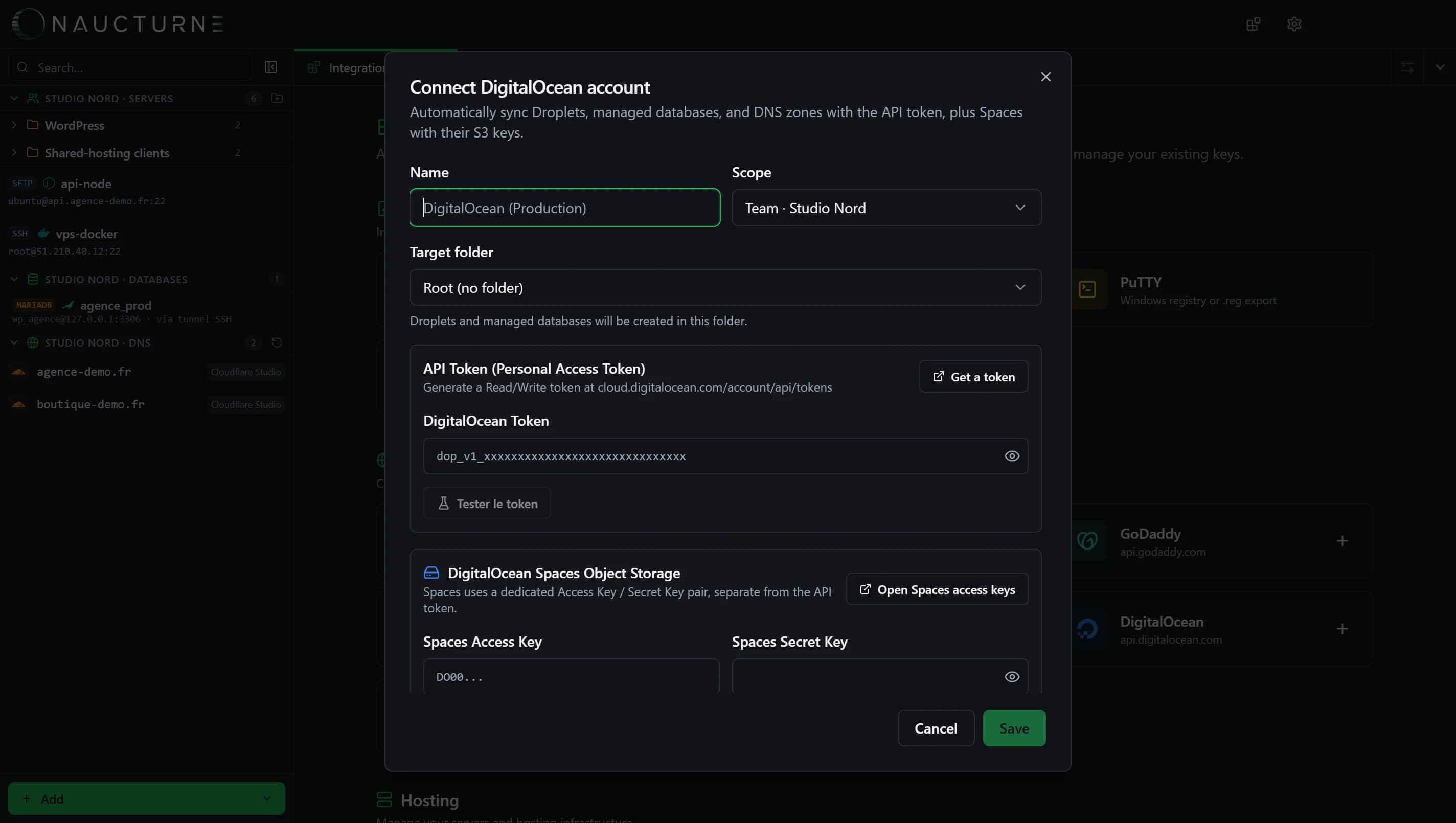
Set it up in three steps
Create a token
In the DigitalOcean control panel, go to API and create a Personal Access Token with read and write scopes.
Connect it in Naucturne
Integrations & Import → Hosting → DigitalOcean. Paste the token, test it, pick the folder for synced Droplets and set the default SSH access (user, key or system keys).
Add Spaces keys (optional)
Spaces uses its own access key and secret. Add them to the same account to list your buckets.
What you get
| Resource | Where it appears | What you can do | Stays in sync |
|---|---|---|---|
| Droplets | Servers section, as SSH sites | Dual-pane SFTP, terminal, sudo, open in Cursor / VS Code | New, renamed and deleted Droplets |
| Managed databases | Databases section | Browse tables, filter, run SQL, export | Cluster list |
| DNS zones | DNS section | Edit records, BIND import / export, transactional email setup | Domain list |
| Spaces | As an S3 file browser | Browse, upload and download objects | Bucket list |
Wire transactional email in a minute
Because the DNS zone is already connected, adding Mailgun, SendGrid or Resend to a DigitalOcean domain is one flow: pick the provider and sending subdomain, and Naucturne writes SPF, DKIM, MX and DMARC records into the zone for you.
Share it with your team
Put the DigitalOcean account in a team vault and every member sees the same Droplets, databases and domains, with per-member permissions: an intern can transfer files without touching DNS. The token is encrypted end-to-end, like every other credential.
Limits worth knowing
- Creating, resizing or destroying Droplets stays in the DigitalOcean panel or
doctl. - Spaces keys are separate from the API token.
- DNS editing needs the Pro plan; zones are read-only on Free.
Full walkthrough in the hosting providers guide and on the DigitalOcean integration page.
Frequently asked questions
Can I use SFTP with a DigitalOcean Droplet?
Yes. Any Droplet with SSH enabled accepts SFTP. In Naucturne, each synced Droplet becomes an SFTP/SSH site using the access profile you define, with files, terminal and databases.
Why do Spaces need separate keys?
DigitalOcean issues Spaces access keys independently of the API token, because Spaces speaks the S3 protocol. Add both in Naucturne: the token for Droplets, databases and DNS, the Spaces keys for object storage.
Can I edit my DigitalOcean DNS records?
Yes, in the same DNS editor as Cloudflare, GoDaddy or OVH, with BIND import and export. Editing is included from the Pro plan; zones are read-only on Free.