

Open a Remote SQLite Database over SSH Without Downloading It
Browse, query and edit a SQLite file that lives on your server, straight over SSH, with a read-only mode for production and no copy to keep in sync.
SQLite is everywhere on servers: Laravel and Rails apps in small deployments, Home Assistant, Gitea, Uptime Kuma, WordPress with the SQLite plugin, analytics tools, cron job state. The usual way to inspect one is to scp the file down, open it locally, then hope you didn't make changes that need to go back up while the app kept writing to the original.
Downloading also breaks with WAL mode: the -wal file holds recent writes, and copying the main file alone gives you an outdated view.
How Naucturne opens it in place
Connect to the SSH site
SQLite access uses the site's SSH session. SFTP and SSH sites both work.
Pick the file in the remote explorer
From the site manager's Databases tab, add a SQLite database and browse the server to the file. Tick read-only if it is a production database.
Open it from the sidebar
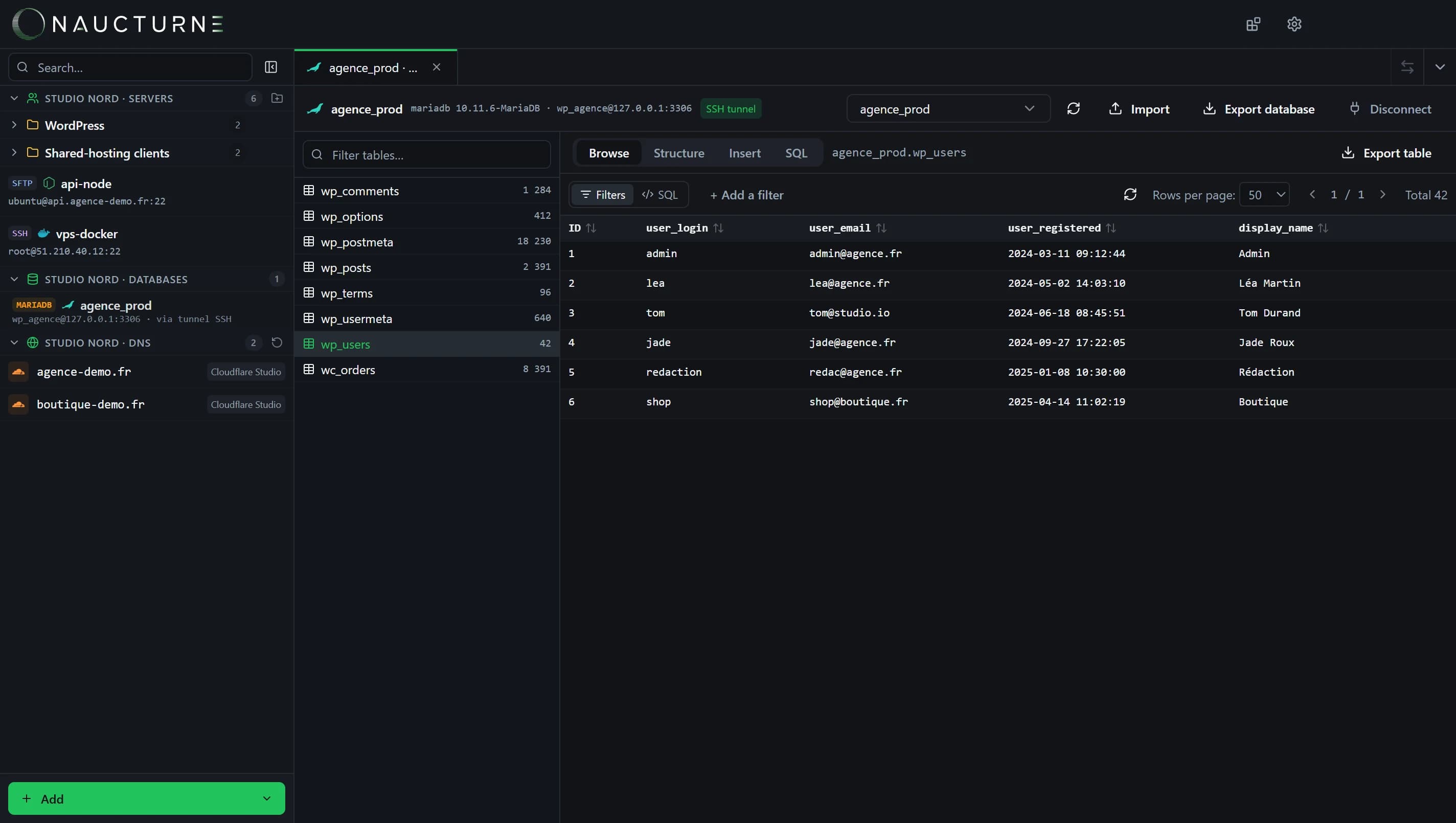
The database appears under Databases. Browse tables, check the structure, filter rows and run SQL like with any other engine.
Why run queries on the server
- Always current. You read the live file, WAL included, not a snapshot from ten minutes ago.
- No transfer of large files. A 2 GB database stays where it is; only result pages travel.
- Nothing to open. No SQLite port exists, and none is added: everything goes through SSH.
- One place for the whole site. Files, terminal and database of the same server, in the same window and the same encrypted vault.
Requirements
The server needs Python 3 with the sqlite3 module. It is part of the standard library on Debian, Ubuntu, RHEL-family distributions and Alpine's python3 package. FTP-only hosting can't run it: use SSH.
Good practices on production
- Use read-only for inspection. Switch to a writable profile only for a deliberate fix.
- For heavy exports, prefer the app's own tooling or
sqlite3 .backupin the terminal, then download the result. - Remember that SQLite locks the database during writes: long write transactions from a GUI can block the application.
When to use something else
If you work on a local SQLite file every day, a desktop tool such as DB Browser for SQLite is great. Naucturne shines when the file lives on a server you already manage, next to its code and its other databases.
See the databases guide for every supported engine and connection mode.
Häufig gestellte Fragen
What does the server need?
SSH access and Python 3 with the standard sqlite3 module, which ships with almost every Linux distribution. Nothing is installed permanently and no port is opened.
Is the file downloaded to my computer?
No. Queries run on the server through the SSH session and only the results travel back. You never work on a stale local copy.
Can I avoid accidental writes on production?
Yes. Tick read-only when you add the database: Naucturne opens the file in read-only mode, so browsing and SELECT queries work but writes are refused.